The following tutorial shows how to create traceable QR Codes that could be scanned by mobile phones to generate traffic from printed sources.Note: This tutorial assumes that you have the required computer skills to browse the Internet and copy and paste text comfortably and that you understand some basic terminology like URL, SMS, Smartphone, etc.
Background
QR Code stands for Quick Response Code, which is an evolved type of barcode capable of storing more information in its matrix-like structure. They are usually found on printed format but they could be found in emails or other electronic means. Due to their storage capacity QR Codes can contain URLs, phone numbers, text information and SMS data and smartphones with a built-in camera can use the code to read this information, interpret it and perform a default task, such as opening the text editor, the web browser or the address book. The following section contains a step-by-step guide on how to create a traceable QR code for URLs.
Steps
- Since we want the QR code to open the web-browser with our URL, what we want to do is find a landing page URL that is likely to appeal our target audience, e.g. a contact page on our website.http://www.solveitsoftware.com/contact.jsp
- If you use Google Analytics to track traffic, you might want to go to use Google’s URL Builder to add key-value pairs that can help you identify the campaign source, medium and name that the QR code will belong to, otherwise skip to Step 3.
- Go to: http://support.google.com/googleanalytics/bin/answer.py?hl=en&answer=55578
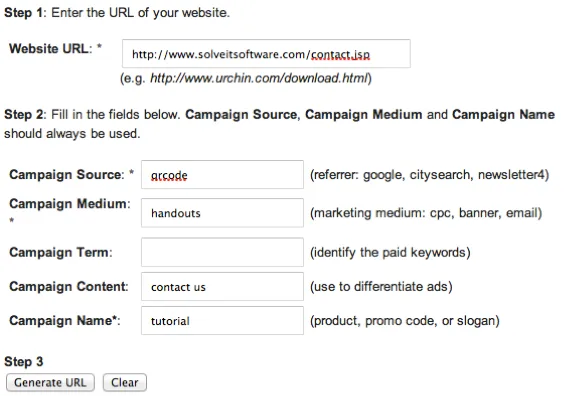
- Fill the form accordingly and click the “Generate URL” button, see the example below.[caption id="attachment_39" align="aligncenter" width="566" caption="Google URL Builder Tool for Tracking Analytics"]
- [/caption]
- Select the URL that appears in the text-box under “Step 3” in the URL Builder tool and press Ctrl+C to copy to the clipboard.The output URL should look something like this:http://www.solveitsoftware.com/contact.jsp?utm_source=qrcode&utm_medium=handouts&utm_content=contact%2Bus&utm_campaign=tutorial
- Open a new web browser window and go to http://goo.gl/, and paste (Ctrl+V) the URL (either from step 1 or 2) in the textbox available in the web page, and then click “Shorten”.
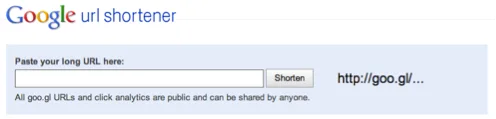
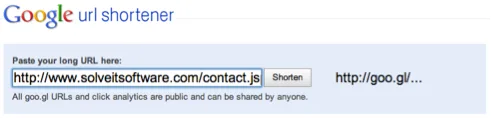
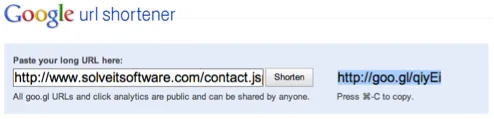
- Copy (Ctrl+C) the URL highlighted in blue (It is already selected).
- In a new web browser window navigate to http://qrcode.kaywa.com/. Make sure that under “Content type”, the radio-button “URL” is selected. Then, under “Content: URL:” paste (Ctrl+V) the Google shortened URL from Step 3.
- Pick a size (usually for print media, the larger the better), and click “Generate!” in the button below.
- Download the image (Right click è Save picture as…) and try it.
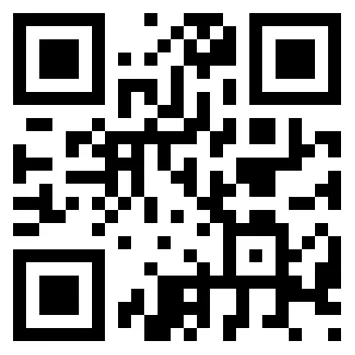
Notice that with this method you may be able to use Google Analytics and the Google Shortener to track link statistics.